Quick Answer
The best QR codes are large enough to scan easily, high in contrast, tested on real phones, and placed where people can reach them. Keep a clear quiet zone around the code, use error correction if you add a logo, and always send scanners to a mobile-friendly page. Most QR failures come from size, contrast, or an untested link.
A QR code fails for boring, avoidable reasons: it is too small, too low in contrast, crammed against other elements, or points to a page that does not work on a phone. Getting the basics right makes almost any code scan reliably. This guide covers the practices that matter most and the mistakes to avoid.
What Size Should a QR Code Be?
A QR code should be at least 2 by 2 centimeters, or about 0.8 inches, for scanning at close range. The further away people scan, the larger it must be. A rough rule is a 10 to 1 distance-to-size ratio, so a code scanned from 2 meters should be around 20 centimeters wide.
When in doubt, make it bigger. A slightly oversized code always scans, while an undersized one frustrates people and gets ignored.
How Do Contrast and Quiet Zone Affect Scanning?
Scanners rely on contrast between the dark modules and the light background. Dark on light works best, ideally near black on white. Avoid light codes on dark backgrounds, low-contrast color pairs, or busy photo backgrounds, since these often fail to scan.
Every code also needs a quiet zone, a clear margin of empty space around it, so the scanner can find its edges (Denso Wave). The international QR code standard, ISO/IEC 18004, sets out the same requirement. Crowding the code with text or graphics right up to its border is a common reason codes will not read.
Should You Test QR Codes Before Printing?
Always test before you print or publish. Scan the final code with more than one phone, on both iPhone and Android if you can, and confirm it opens the correct page. Test the printed version too, not just the screen, since paper and print quality can change the result.
Testing takes a minute and prevents the expensive mistake of printing thousands of materials with a code that does not work.
Error Correction and Logos
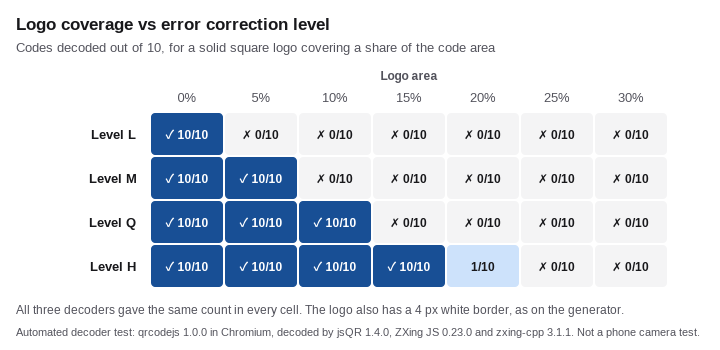
QR codes include error correction that lets them scan even when part of the pattern is damaged or covered. Denso Wave describes four levels, L, M, Q and H, with H the highest. If you place a logo in the center, use level H. In our automated decoder test, a centred square logo decoded at level H up to 15 percent of the code area and stopped decoding at 20 to 25 percent, well short of the 30 percent figure often quoted.
Keep any logo small and centered, and always test the finished code, since too large a logo can push even a high error correction code past its limit.
The Most Common QR Code Mistakes
The mistakes that break QR codes are predictable: making them too small, using low contrast, removing the quiet zone, adding an oversized logo, never testing, and pointing the code at a slow or desktop-only page. Another is using a dynamic code on a subscription that lapses, which silently kills every printed code.
Fix these and your codes will scan the first time, every time. Do the basics well and the technology simply works.
How Large Should the Quiet Zone Be?
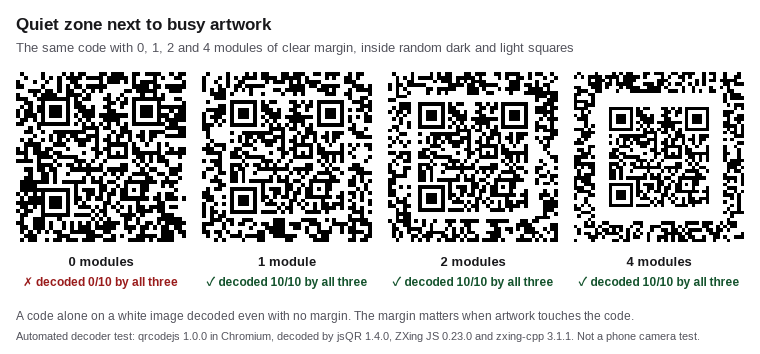
"Leave some space" is easy to say and easy to ignore, so it helps to know the actual rule. Denso Wave, which invented the QR code, says in its guidance on the code area that a QR code requires a margin four modules wide on all sides, where nothing is printed. A module is one of the small squares that make up the code.
Its worked example shows the effect on size. A Version 3 code is 29 modules wide. Printed at 0.254 millimeters per module, the code itself measures 7.366 millimeters, and adding four modules of margin on each side brings the total area to 9.398 millimeters square, about a quarter larger than the code alone.
To apply this to your own design, count the width of one small square in your code and leave at least four of those widths empty on every side. Treat that margin as part of the code when you lay out a page, so text, borders and images never creep into it. The PNG from our main generator includes a four module margin by default, set by its Quiet Zone slider. The WiFi, vCard and batch generators do not add one, so for those, add it in your layout.
How Do Data and Error Correction Affect Scanning?
Two settings decide how dense your code looks: how much data you put in it and how much error correction you choose. QR codes come in 40 versions, from Version 1 with 21 x 21 modules to Version 40 with 177 x 177 modules, with four modules added per side at each step, according to Denso Wave's version guide. More data means a higher version and more, smaller modules at the same print size.
Error correction adds redundancy so a damaged code still reads. Denso Wave notes that Level M, which restores about 15 percent of the data, is the most frequently selected, that Level Q or H may suit environments where codes get dirty, such as factories, and that Level L may suit clean environments with large amounts of data.
The practical balance is to keep the data short, using a concise web address rather than a long one full of tracking parameters, and then choose a higher error correction level only when you need it, such as when adding a logo or printing for outdoor use.
How Do You Keep Published QR Codes Secure?
A code that scans perfectly can still be abused if someone replaces it. In a January 2022 public service announcement, the FBI Internet Crime Complaint Center warned that criminals tamper with both digital and physical QR codes, for example by placing a sticker with a malicious code on top of a genuine one. The US Postal Inspection Service, which calls this kind of fraud quishing, warns people to be extra cautious with codes on signs, posters and flyers.
That makes trust part of good QR design. If you publish codes in public places:
- Print codes directly onto signs and materials rather than using stickers that are easy to cover.
- Show where the code leads, such as your domain name in text beside it, so people can check the address after scanning, as the FBI advises.
- Link to app store pages, not app files. The FBI tells people not to download apps from a QR code and to use their phone's app store instead.
- Avoid taking payments through a QR link where you can, since the FBI also advises against paying through sites reached by QR code.
- Inspect public codes regularly and replace any that look tampered with.
How Do You Track QR Code Scans?
You do not need a paid dynamic code to count scans. Add campaign tags to the link before you generate the code. Google Analytics reads three of them to label a visit: utm_source for the referrer, such as poster or flyer, utm_medium for the medium, such as print, and utm_campaign for the campaign or promotion name.
Give each placement its own tags and its own code, for example one for the shop window and another for the menu. Your analytics will then show which placement brought each visit, so you can compare them instead of guessing.
Tags make the link longer, and a longer link means a denser code, as the section on data above explains. Keep the tag values short, or point the code at a short address on your own site that redirects to the tagged link.
What Makes People Scan?
A bare code gives nobody a reason to pull out a phone. Put a short line right next to it that says what scanning gets them, such as "Scan for the menu" or "Scan to book a table". Place the code where people have a moment to act, such as a table, a counter or a waiting area, rather than somewhere they walk or drive past.
Then keep the promise. The page behind the code should load quickly on a phone and show exactly what the label offered. A slow page, or one that opens on something else, wastes the scan.
A Pre-Launch QR Code Checklist
Before you send anything to print, run through this list. It takes five minutes and catches nearly every problem described above.
- Destination: the link opens the right page, loads quickly on mobile data, and works without logging in.
- Data: the address is as short as it can be, with only the campaign tags you need.
- Size: the code is at least 2 x 2 centimeters for close scanning, and larger for anything read from a distance.
- Contrast: dark modules on a light background, with no photo or pattern behind the code.
- Quiet zone: at least four modules of clear space on every side.
- Logo: small, centered, and paired with a higher error correction level.
- Label: a short call to action and your brand or domain beside the code.
- Testing: a printed proof scanned on both iPhone and Android, in the lighting where it will be used.
Keep a copy of the final file and the destination link together, so anyone updating the material later knows exactly what the code does.
Frequently Asked Questions
What is the minimum size for a QR code?
A QR code should be at least 2 by 2 centimeters, or about 0.8 inches, for close-range scanning. For greater distances, scale it up using a rough 10 to 1 distance-to-size ratio. When unsure, make it larger, since an oversized code always scans and an undersized one often fails.
Why is my QR code not scanning?
The usual causes are small size, low contrast, no quiet zone around the code, an oversized logo, or a damaged printout. Check that the code is dark on a light background with a clear margin, then test it on more than one phone to confirm it opens the right page.
Do QR codes need a border or quiet zone?
Yes. A quiet zone is the clear margin of empty space around the code that lets a scanner find its edges. Crowding text or graphics right up to the code is a common reason it will not scan. Leave a clean border on all four sides.
Can I put a logo in a QR code?
Yes, if you use error correction level H and keep the logo small. In our automated decoder test, a centred logo decoded at level H up to 15 percent of the code area and failed beyond that. Keep the logo small and centered, and always test the finished code, since an oversized logo can push even a high correction code past its limit.
Should I test a QR code before printing?
Always. Scan the final code on more than one phone, ideally both iPhone and Android, and check that it opens the correct page. Test the printed version as well as the screen, since a minute of testing prevents printing thousands of materials with a code that does not work.
How do I track scans of a QR code?
Add campaign tags such as utm_source, utm_medium and utm_campaign to the link before you generate the code, and make a separate code for each placement. Google Analytics then shows which placement brought each visit. Keep the tags short, because a longer link makes a denser code.
How do I stop people tampering with my QR codes?
Print codes directly onto your materials instead of using loose stickers, show your brand or domain name beside each code so people can check where it leads, and inspect public codes regularly. The FBI has warned that criminals place stickers with malicious codes over genuine ones, so replace anything that looks covered or altered.
Ready to make your own? Use our free QR code generator to create a code with no signup and no watermark, and download it as a PNG.
Create a Free QR Code →